

AZ-100 Exam Questions - Online Test
AZ-100 Premium VCE File

150 Lectures, 20 Hours
Want to know AZ-100 Exam Questions features? Want to lear more about AZ-100 Dumps Questions experience? Study AZ-100 Free Practice Questions. Gat a success with an absolute guarantee to pass Microsoft AZ-100 (Microsoft Azure Infrastructure and Deployment) test on your first attempt.
Online AZ-100 free questions and answers of New Version:
NEW QUESTION 1
Note: This question is part of a series of questions that present the same scenario. Each question in the series contains a unique solution that might meet the stated goals. Some question sets might have more than one correct solution, while others might not have a correct solution.
After you answer a question in this section, you will NOT be able to return to it. As a result, these questions will not appear in the review screen.
You have an Azure subscription named Subscription1. Subscription1 contains a resource group named RG1. RG1 contains resources that were deployed by using templates.
You need to view the date and time when the resources were created in RG1. Solution: From the RG1 blade, you click Deployments.
Does this meet the goal?
- A. Yes
- B. No
Answer: A
NEW QUESTION 2
You have an Azure subscription that contains the resources in the following table.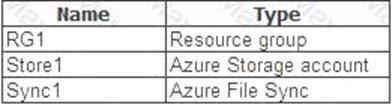
Store1 contains a file share named Data. Data contains 5,000 files.
You need to synchronize the files in Data to an on-premises server named Server1.
Which three actions should you perform? Each correct answer presents part of the solution. NOTE: Each correct selection is worth one point.
- A. Download an automation script.
- B. Create a container instance.
- C. Create a sync group.
- D. Register Server1.
- E. Install the Azure File Sync agent on Server1.
Answer: CDE
Explanation: Step 1 (E): Install the Azure File Sync agent on Server1
The Azure File Sync agent is a downloadable package that enables Windows Server to be synced with an Azure file share
Step 2 (D): Register Server1.
Register Windows Server with Storage Sync Service
Registering your Windows Server with a Storage Sync Service establishes a trust relationship between your server (or cluster) and the Storage Sync Service.
Step 3 (C): Create a sync group and a cloud endpoint.
A sync group defines the sync topology for a set of files. Endpoints within a sync group are kept in sync with each other. A sync group must contain one cloud endpoint, which represents an Azure file share and one or more server endpoints. A server endpoint represents a path on registered server.
References: https://docs.microsoft.com/en-us/azure/storage/files/storage-sync-files-deployment-guide
NEW QUESTION 3
You have an Azure subscription named Subscription1 that is used be several departments at your company. Subscription1 contains the resources in the following table:
Another administrator deploys a virtual machine named VM1 and an Azure Storage account named Storage2 by using a single Azure Resource Manager template.
You need to view the template used for the deployment.
From which blade can you view the template that was used for the deployment?
- A. RG1
- B. VM1
- C. Storage1
- D. Container1
Answer: A
Explanation: 1. View template from deployment history
Go to the resource group for your new resource group. Notice that the portal shows the result of the last
deployment. Select this link.
2. You see a history of deployments for the group. In your case, the portal probably lists only one deployment. Select this deployment.
The portal displays a summary of the deployment. The summary includes the status of the deployment and its operations and the values that you provided for parameters. To see the template that you used for the deployment, select View template.
References:
https://docs.microsoft.com/en-us/azure/azure-resource-manager/resource-manager-export-template
NEW QUESTION 4
You have a virtual network named VNet1 that has the configuration shown in the following exhibit.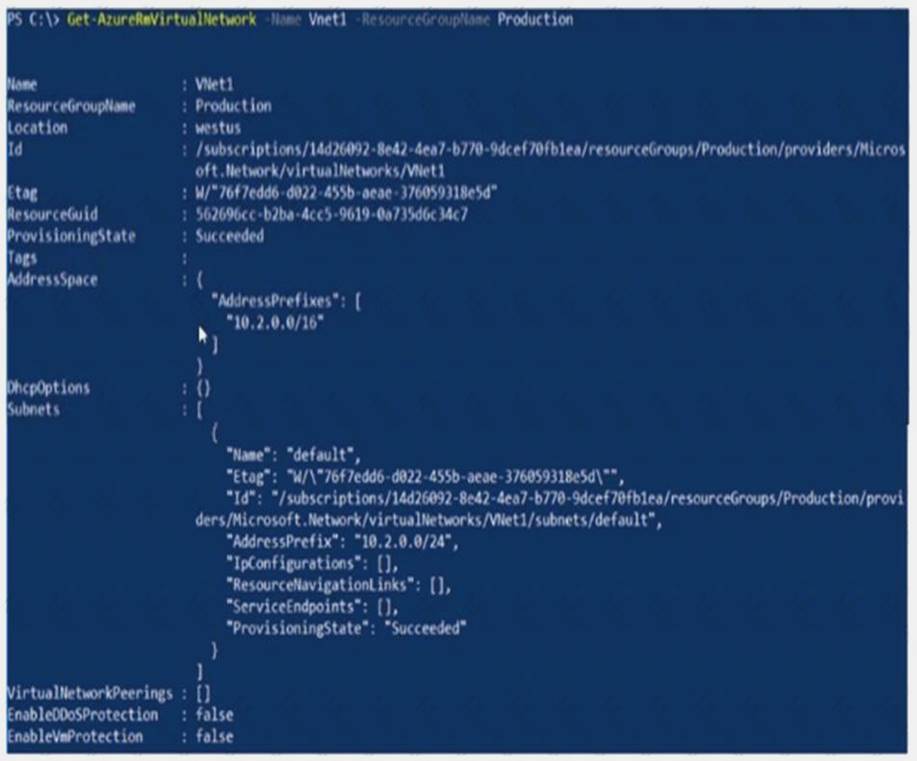
Use the drop-down menus to select the answer choice that completes each statement based on the information presented in the graphic.
NOTE: Each correct selection is worth one point.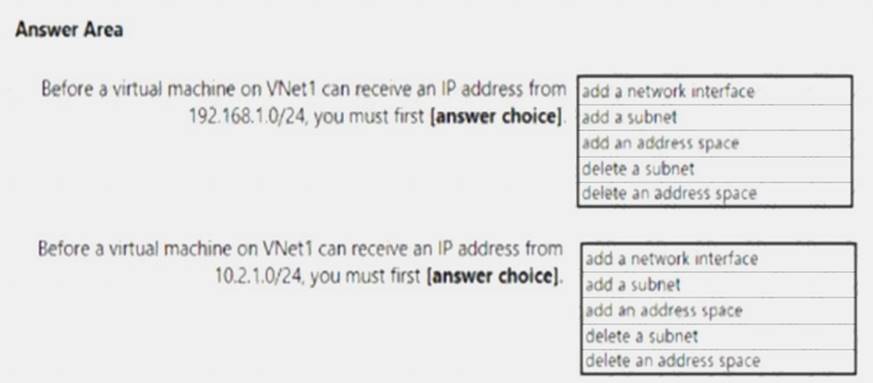
Answer:
Explanation: Box 1: add a subnet
Your IaaS virtual machines (VMs) and PaaS role instances in a virtual network automatically receive a private IP address from a range that you specify, based on the subnet they are connected to. We need to add the 192.168.1.0/24 subnet.
Box 2: add a network interface
The 10.2.1.0/24 network exists. We need to add a network interface. References:
https://docs.microsoft.com/en-us/azure/virtual-network/virtual-networks-static-private-ip-arm-pportal
NEW QUESTION 5
Your company registers a domain name of contoso.com.
You create an Azure DNS named contoso.com and then you add an A record to the zone for a host named www that has an IP address of 131.107.1.10.
You discover that Internet hosts are unable to resolve www.contoso.com to the 131.107.1.10 IP address. You need to resolve the name resolution issue.
Solution: You modify the name server at the domain registrar. Does this meet the goal?
- A. Yes
- B. No
Answer: B
Explanation: Modify the Name Server (NS) record.
References: https://docs.microsoft.com/en-us/azure/dns/dns-delegate-domain-azure-dns
NEW QUESTION 6
Overview
The following section of the exam is a lab. In this section, you will perform a set of tasks in a live environment. While most functionality will be available to you as it would be in a live environment, some functionality (e.g., copy and paste, ability to navigate to external websites) will not be possible by design.
Scoring is based on the outcome of performing the tasks stated in the lab. In other words, it doesn’t matter how you accomplish the task, if you successfully perform it, you will earn credit for that task.
Labs are not timed separately, and this exam may have more than one lab that you must complete. You can use as much time as you would like to complete each lab. But, you should manage your time appropriately to ensure that you are able to complete the lab(s) and all other sections of the exam in the time provided.
Please note that once you submit your work by clicking the Next button within a lab, you will NOT be able to return to the lab.
To start the lab
You may start the lab by clicking the Next button. You recently created a virtual machine named Web01.
You need to attach a new 80-GB standard data disk named Web01-Disk1 to Web01.
What should you do from the Azure portal?
Answer:
Explanation: Add a data disk
Step 1. In the Azure portal, from the menu on the left, selecVt irtual machines.
Step 2. Select the Web01 virtual machine from the list.
Step 3. On the Virtual machine
page, , in Essentials, selecDt isks.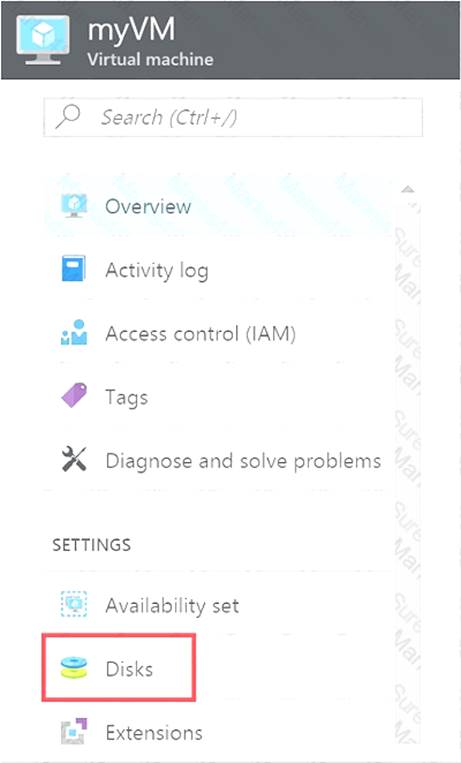
Step 4. On the Disks
page, select the Web01-Disk1 from the list of existing disks.
Step 5. In the Disks pane, click + Add data disk.
Step 6. Click the drop-down menu for Name to view a list of existing managed disks accessible to your Azure subscription. Select the managed disk Web01-Disk1 to attach: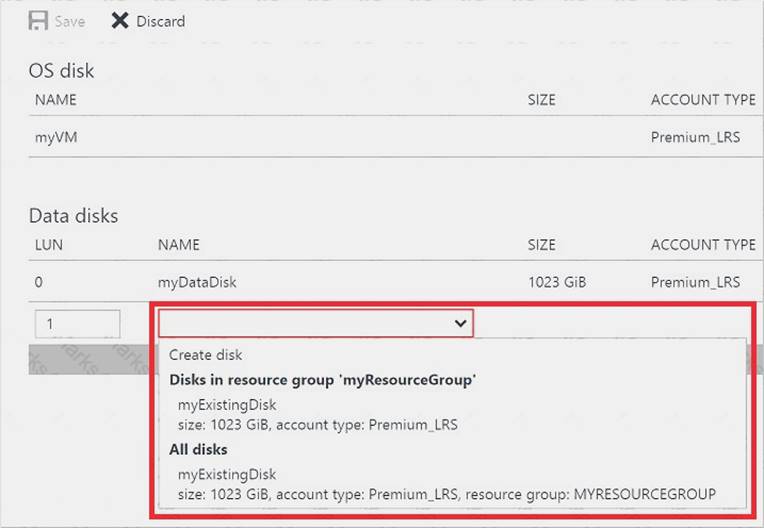
References:
https://docs.microsoft.com/en-us/azure/virtual-machines/linux/attach-disk-portal
NEW QUESTION 7
Click to expand each objective. To connect to the Azure portal, type https://portal.azure.com in the browser address bar.
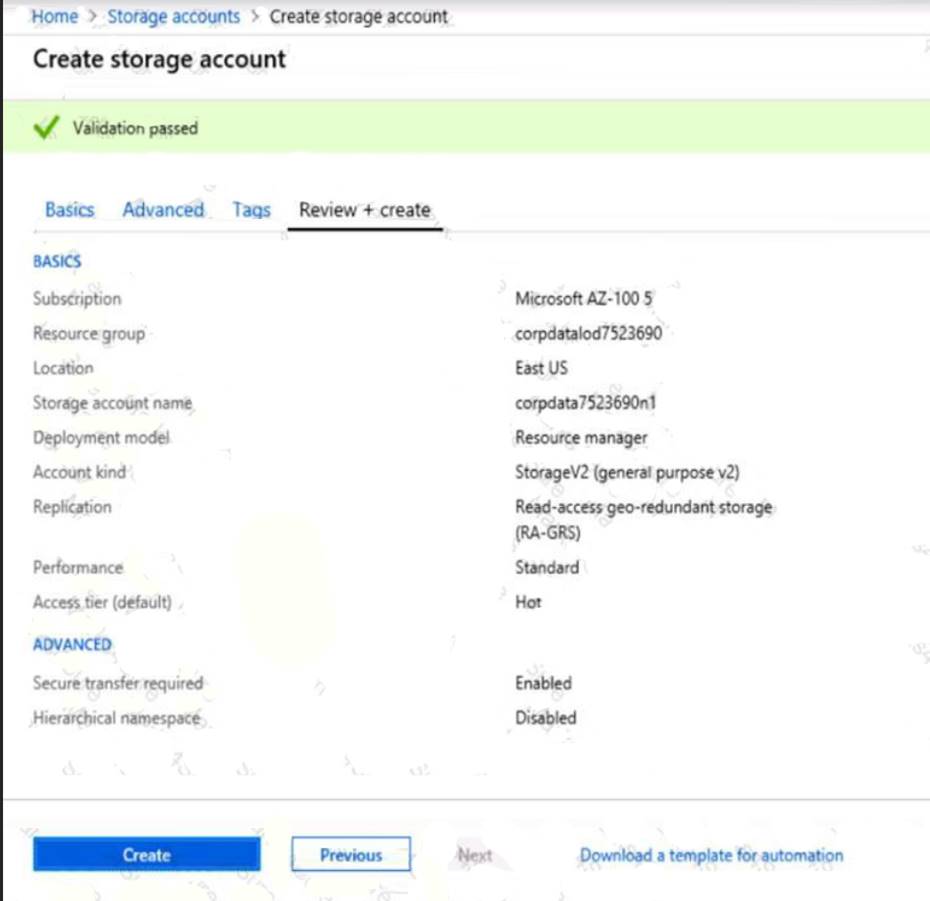
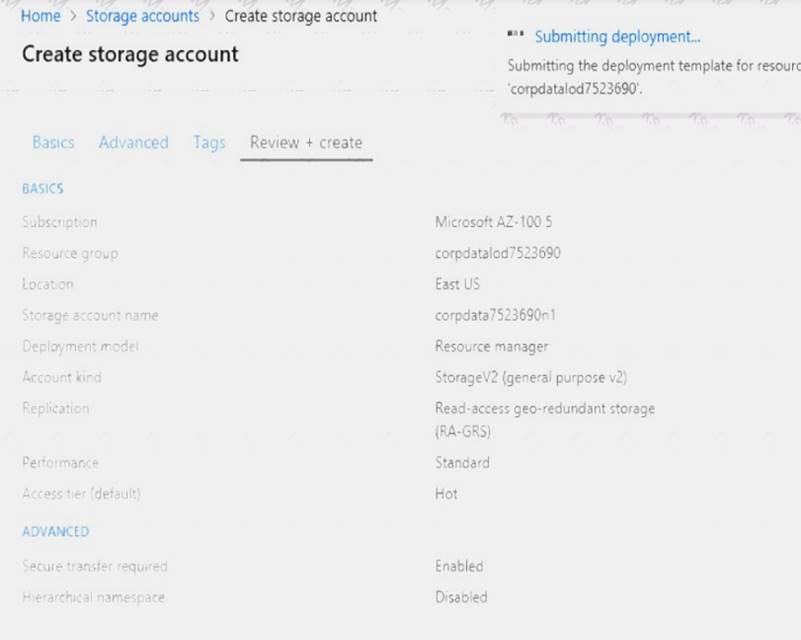
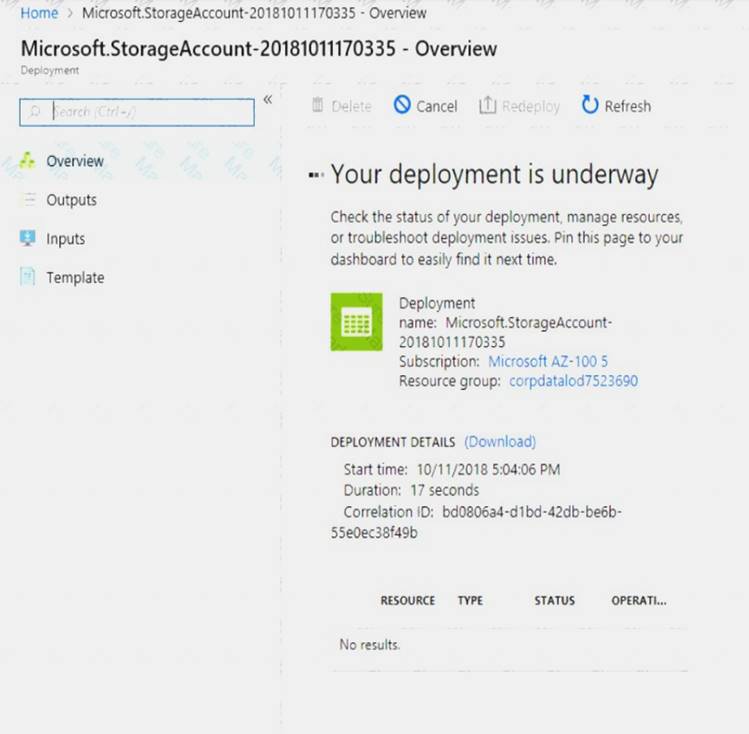
When you are finished performing all the tasks, click the ‘Next’ button.
Note that you cannot return to the lab once you click the ‘Next’ button. Scoring occur in the background while you complete the rest of the exam.
Overview
The following section of the exam is a lab. In this section, you will perform a set of tasks in a live environment. While most functionality will be available to you as it would be in a live environment, some functionality (e.g., copy and paste, ability to navigate to external websites) will not be possible by design. Scoring is based on the outcome of performing the tasks stated in the lab. In other words, it doesn’t matter how you accomplish the task, if you successfully perform it, you will earn credit for that task.
Labs are not timed separately, and this exam may have more than one lab that you must complete. You can use as much time as you would like to complete each lab. But, you should manage your time appropriately to
ensure that you are able to complete the lab(s) and all other sections of the exam in the time provided.
Please note that once you submit your work by clicking the Next button within a lab, you will NOT be able to return to the lab.
To start the lab
You may start the lab by clicking the Next button.
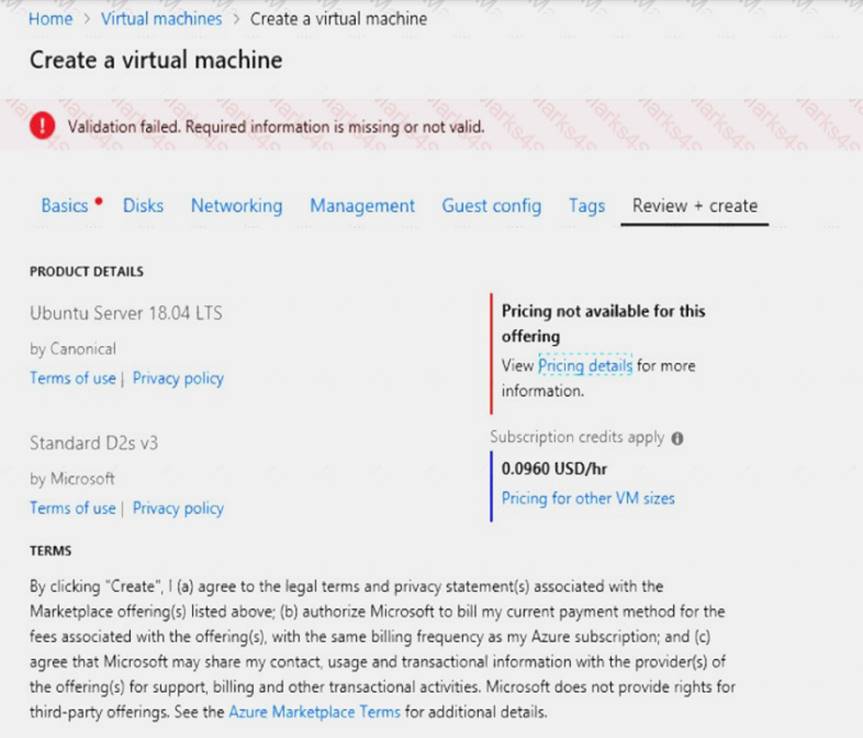
You need to deploy an Azure virtual machine named VM1004a based on the Ubuntu Server 17.10 image, and then to configure VM1004a to meet the following requirements: The virtual machine must contain data disks that can store at least 15 TB of data. The data disks must be able to provide at least 2,000 IOPS. Storage costs must be minimized.
What should you do from the Azure portal?
Answer:
Explanation: 1. Open the Azure portal.
2. On the left menu, select All resources. You can sort the resources by Type to easily find your images.
3. Select the image you want to use from the list. The image Overview page opens.
4. Select Create VM from the menu.
5. Enter the virtual machine information.
Select VM1004a as the name for the first Virtual machine.
The user name and password entered here will be used to log in to the virtual machine. When complete, select OK. You can create the new VM in an existing resource group, or choose Create new to create a new resource group to store the VM.
6. Select a size for the VM. To see more sizes, select View all or change the Supported disk type filter. To support 15 TB of data you would need a Premium disk.
7. Under Settings, make changes as necessary and select OK.
8. On the summary page, you should see your image name listed as a Private image. Select Ok to start the virtual machine deployment.
References:
https://docs.microsoft.com/en-us/azure/virtual-machines/windows/create-vm-generalized-managed
NEW QUESTION 8
You have an Azure subscription named Subscription1. Subscription1 contains a virtual machine named VM1. You have a computer named Computer1 that runs Windows 10. Computer1 is connected to the Internet.
You add a network interface named Interface1 to VM1 as shown in the exhibit (Click the Exhibit button.)
From Computer1, you attempt to connect to VM1 by using Remote Desktop, but the connection fails. You need to establish a Remote Desktop connection to VM1.
What should you do first?
- A. Start VM1.
- B. Attach a network interface.
- C. Delete the DenyAllOutBound outbound port rule.
- D. Delete the DenyAllInBound inbound port rule.
Answer: A
NEW QUESTION 9
You have an Azure subscription named Subscription1. Subscription1 contains the resources in the following table.
In Azure, you create a private DNS zone named adatum.com. You set the registration virtual network to VNet2. The adatum.com zone is configured as shown in the following exhibit.
For each of the following statements, select Yes if the statement is true. Otherwise, select No. NOTE: Each correct selection is worth one point.
Answer:
Explanation: Box 1: No
Azure DNS provides automatic registration of virtual machines from a single virtual network that's linked to a private zone as a registration virtual network. VM5 does not belong to the registration virtual network though.
Box 2: No
Forward DNS resolution is supported across virtual networks that are linked to the private zone as resolution virtual networks. VM5 does belong to a resolution virtual network.
Box 3: Yes
VM6 belongs to registration virtual network, and an A (Host) record exists for VM9 in the DNS zone.
By default, registration virtual networks also act as resolution virtual networks, in the sense that DNS resolution against the zone works from any of the virtual machines within the registration virtual network.
References: https://docs.microsoft.com/en-us/azure/dns/private-dns-overview
NEW QUESTION 10
You need to prepare the environment to meet the authentication requirements.
Which two actions should you perform? Each correct answer presents part of the solution.
NOTE Each correct selection is worth one point.
- A. Azure Active Directory (AD) Identity Protection and an Azure policy
- B. a Recovery Services vault and a backup policy
- C. an Azure Key Vault and an access policy
- D. an Azure Storage account and an access policy
Answer: BD
Explanation: D: Seamless SSO works with any method of cloud authentication - Password Hash Synchronization or Pass-through Authentication, and can be enabled via Azure AD Connect.
B: You can gradually roll out Seamless SSO to your users. You start by adding the following Azure AD URL to all or selected users' Intranet zone settings by using Group Policy in Active Directory: https://autologon.microsoftazuread-sso.com
Topic 2, Contoso Ltd
Overview
Contoso, Ltd. is a manufacturing company that has offices worldwide. Contoso works with partner organizations to bring products to market.
Contoso products are manufactured by using blueprint files that the company authors and maintains.
Existing Environment
Currently, Contoso uses multiple types of servers for business operations, including the following:
File servers
Domain controllers
Microsoft SQL Server servers
Your network contains an Active Directory forest named contoso.com. All servers and client computers are joined to Active Directory.
You have a public-facing application named App1. App1 is comprised of the following three tiers:
A SQL database
A web front end
A processing middle tier
Each tier is comprised of five virtual machines. Users access the web front end by using HTTPS only.
Requirements Planned Changes
Contoso plans to implement the following changes to the infrastructure: Move all the tiers of App1 to Azure.
Move the existing product blueprint files to Azure Blob storage.
Create a hybrid directory to support an upcoming Microsoft Office 365 migration project.
Technical Requirements
Contoso must meet the following technical requirements:
Move all the virtual machines for App1 to Azure.
Minimize the number of open ports between the App1 tiers.
Ensure that all the virtual machines for App1 are protected by backups.
Copy the blueprint files to Azure over the Internet.
Ensure that the blueprint files are stored in the archive storage tier.
Ensure that partner access to the blueprint files is secured and temporary.
Prevent user passwords or hashes of passwords from being stored in Azure.
Use unmanaged standard storage for the hard disks of the virtual machines.
Ensure that when users join devices to Azure Active Directory (Azure AD), the users use a mobile phone to verify their identity.
Minimize administrative effort whenever possible.
User Requirements
Contoso identifies the following requirements for users:
Ensure that only users who are part of a group named Pilot can join devices to Azure AD. Designate a new user named Admin1 as the service administrator of the Azure subscription. Ensure that a new user named User3 can create network objects for the Azure subscription.
NEW QUESTION 11
You have an Azure Active Directory (Azure AD) domain that contains 5,000 user accounts. You create a new user account named AdminUser1.
You need to assign the User administrator administrative role to AdminUser1. What should you do from the user account properties?
- A. From the Directory role blade, modify the directory role.
- B. From the Groups blade, invite the user account to a new group.
- C. From the Licenses blade, assign a new license.
Answer: A
Explanation: Assign a role to a user Sign in to the Azure portal with an account that's a global admin or privileged role admin for the directory. Select Azure Active Directory, select Users, and then select a specific user from the list. For the selected user, select Directory role, select Add role, and then pick the appropriate admin roles from the Directory roles list, such as Conditional access administrator. Press Select to save. References:
https://docs.microsoft.com/en-us/azure/active-directory/fundamentals/active-directory-users-assign-role-azure-p
NEW QUESTION 12
You plan to automate the deployment of a virtual machine scale set that uses the Windows Server 2021 Datacenter image.
You need to ensure that when the scale set virtual machines are provisioned, they have web server components installed.
Which two actions should you perform? Each correct answer presents part of the solution. NOTE Each correct selection is worth one point.
- A. Modify the extensionProfile section of the Azure Resource Manager template.
- B. Create a new virtual machine scale set in the Azure portal.
- C. Create an Azure policy.
- D. Create an automation account.
- E. Upload a configuration script.
Answer: AB
Explanation: Virtual Machine Scale Sets can be used with the Azure Desired State Configuration (DSC) extension handler. Virtual machine scale sets provide a way to deploy and manage large numbers of virtual machines, and can elastically scale in and out in response to load. DSC is used to configure the VMs as they come online so they are running the production software.
References: https://docs.microsoft.com/en-us/azure/virtual-machine-scale-sets/virtual-machine-scale-sets-dsc
NEW QUESTION 13
Overview
The following section of the exam is a lab. In this section, you will perform a set of tasks in a live environment. While most functionality will be available to you as it would be in a live environment, some functionality (e.g., copy and paste, ability to navigate to external websites) will not be possible by design.
Scoring is based on the outcome of performing the tasks stated in the lab. In other words, it doesn’t matter how you accomplish the task, if you successfully perform it, you will earn credit for that task.
Labs are not timed separately, and this exam may have more than one lab that you must complete. You can use as much time as you would like to complete each lab. But, you should manage your time appropriately to ensure that you are able to complete the lab(s) and all other sections of the exam in the time provided.
Please note that once you submit your work by clicking the Next button within a lab, you will NOT be able to return to the lab.
To start the lab
You may start the lab by clicking the Next button. You plan to host several secured websites on Web01.
You need to allow HTTPS over TCP port 443 to Web01 and to prevent HTTP over TCP port 80 to Web01. What should you do from the Azure portal?
Answer:
Explanation: You can filter network traffic to and from Azure resources in an Azure virtual network with a network security group. A network security group contains security rules that allow or deny inbound network traffic to, or outbound network traffic from, several types of Azure resources.
A network security group contains security rules that allow or deny inbound network traffic to, or outbound network traffic from, several types of Azure resources.
Step A: Create a network security group
A1. Search for and select the resource group for the VM, choose Add, then search for and select Network security group.
A2. Select Create.
The Create network security group window opens. A3. Create a network security group
Enter a name for your network security group.
Select or create a resource group, then select a location. A4. Select Create to create the network security group.
Step B: Create an inbound security rule to allows HTTPS over TCP port 443 B1. Select your new network security group.
B2. Select Inbound security rules, then select Add. B3. Add inbound rule
B4. Select Advanced.
From the drop-down menu, select HTTPS.
You can also verify by clicking Custom and selecting TCP port, and 443. B5. Select Add to create the rule.
Repeat step B2-B5 to deny TCP port 80
B6. Select Inbound security rules, then select Add. B7. Add inbound rule
B8. Select Advanced.
Clicking Custom and selecting TCP port, and 80. B9. Select Deny.
Step C: Associate your network security group with a subnet
Your final step is to associate your network security group with a subnet or a specific network interface. C1. In the Search resources, services, and docs box at the top of the portal, begin typing Web01. When the
Web01 VM appears in the search results, select it.
C2. Under SETTINGS, select Networking. Select Configure the application security groups, select the Security Group you created in Step A, and then select Save, as shown in the following picture:
References:
https://docs.microsoft.com/en-us/azure/virtual-network/tutorial-filter-network-traffic
NEW QUESTION 14
You have an Azure subscription named Subscription1. Subscription1 contains the virtual networks in the following table.
Subscription1 contains the virtual machines in the following table:
The firewalls on all the virtual machines are configured to allow all ICMP traffic. You add the peerings in the following table.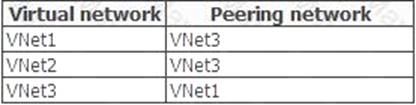
For each of the following statements, select Yest if the statement is true. Otherwise, select No. NOTE: Each correct selection is worth one point.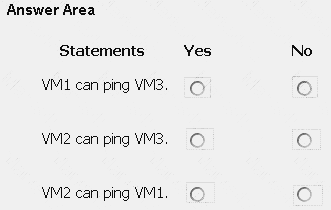
Answer:
Explanation: Box 1: Yes
Vnet1 and Vnet3 are peers. Box 2: Yes
Vnet2 and Vnet3 are peers. Box 3: No
Peering connections are non-transitive.
References:
https://docs.microsoft.com/en-us/azure/architecture/reference-architectures/hybrid-networking/hub-spoke
NEW QUESTION 15
Click to expand each objective. To connect to the Azure portal, type https://portal.azure.com in the browser address bar.
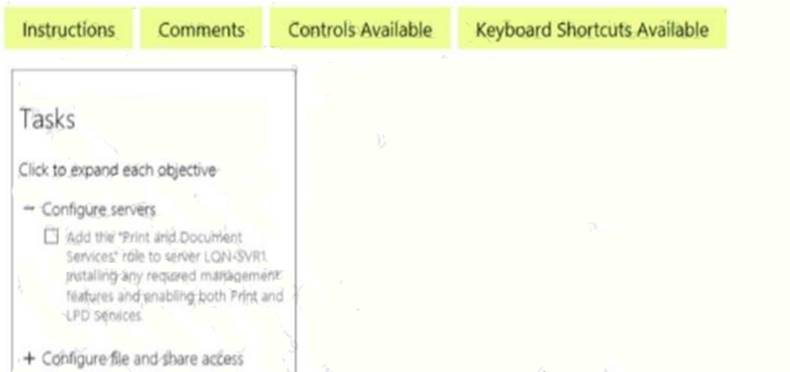
When you are finished performing all the tasks, click the ‘Next’ button.
Note that you cannot return to the lab once you click the ‘Next’ button. Scoring occur in the background while you complete the rest of the exam.
Overview
The following section of the exam is a lab. In this section, you will perform a set of tasks in a live environment. While most functionality will be available to you as it would be in a live environment, some functionality (e.g., copy and paste, ability to navigate to external websites) will not be possible by design.
Scoring is based on the outcome of performing the tasks stated in the lab. In other words, it doesn’t matter how you accomplish the task, if you successfully perform it, you will earn credit for that task.
Labs are not timed separately, and this exam may have more than one lab that you must complete. You can use as much time as you would like to complete each lab. But, you should manage your time appropriately to ensure that you are able to complete the lab(s) and all other sections of the exam in the time provided.
Please note that once you submit your work by clicking the Next button within a lab, you will NOT be able to return to the lab.
To start the lab
You may start the lab by clicking the Next button.
You plan to store media files in the rg1lod7523691n1 storage account.
You need to configure the storage account to store the media files. The solution must ensure that only users who have access keys can download the media files and that the files are accessible only over HTTPS.
What should you do from Azure portal?
Answer:
Explanation: We should create an Azure file share.
Step 1: In the Azure portal, select All services. In the list of resources, type Storage Accounts. As you begin typing, the list filters based on your input. Select Storage Accounts.
On the Storage Accounts window that appears.
Step 2: Locate the rg1lod7523691n1 storage account.
Step 3: On the storage account page, in the Services section, select Files.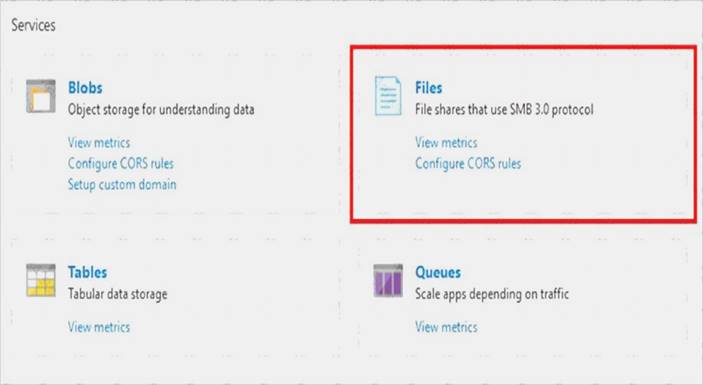
Step 4: On the menu at the top of the File service page, click + File share. The New file share page drops down.
Step 5: In Name type myshare. Click OK to create the Azure file share.
References: https://docs.microsoft.com/en-us/azure/storage/files/storage-how-to-use-files-portal
NEW QUESTION 16
You have an Azure subscription named Subscription1.
You plan to deploy an Ubuntu Server virtual machine named VM1 to Subscription1.
You need to perform a custom deployment of the virtual machine. A specific trusted root certification authority (CA) must be added during the deployment.
What should you do? To answer, select the appropriate options in the answer area. NOTE: Each correct selection is worth one point.
Answer:
Explanation: Box 1: Unattend.xml
In preparation to deploy shielded VMs, you may need to create an operating system specialization answer file. On Windows, this is commonly known as the "unattend.xml" file. The New-ShieldingDataAnswerFile Windows PowerShell function helps you do this. Starting with Windows Server version 1709, you can run certain Linux guest OSes in shielded VMs. If you are using the System Center Virtual Machine Manager Linux agent to specialize those VMs, the New-ShieldingDataAnswerFile cmdlet can create compatible answer files for it.
Box 2: The Azure Portal
You can use the Azure portal to deploy a Linux virtual machine (VM) in Azure that runs Ubuntu.
References: https://docs.microsoft.com/en-us/azure/virtual-machines/linux/quick-create-portal
NEW QUESTION 17
You have an Azure subscription.
You need to implement a custom policy that meet the following requirements:
*Ensures that each new resource group in the subscription has a tag named organization set to a value of Contoso.
*Ensures that resource group can be created from the Azure portal.
*Ensures that compliance reports in the Azure portal are accurate.
How should you complete the policy? To answer, select the appropriate options in the answers area.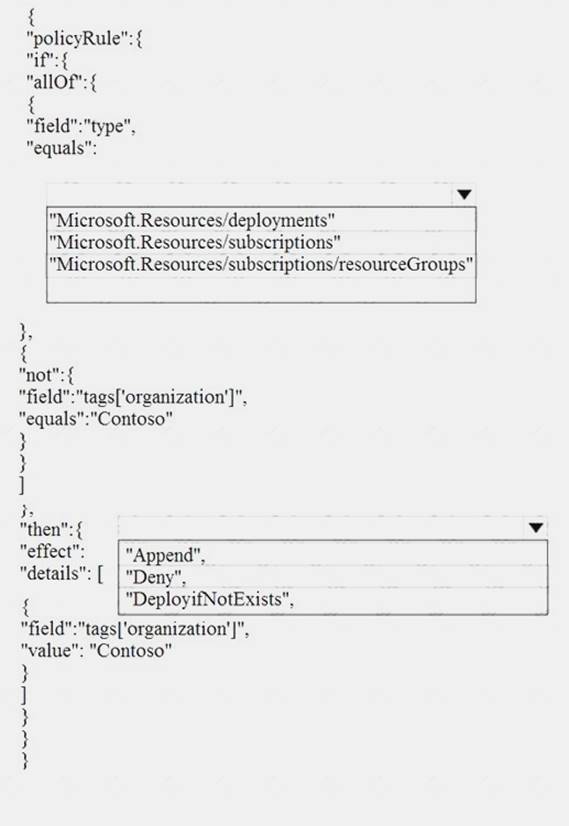
Answer:
Explanation: References: https://docs.microsoft.com/en-us/azure/governance/policy/concepts/definition-structure
NEW QUESTION 18
You have an Azure Storage accounts as shown in the following exhibit.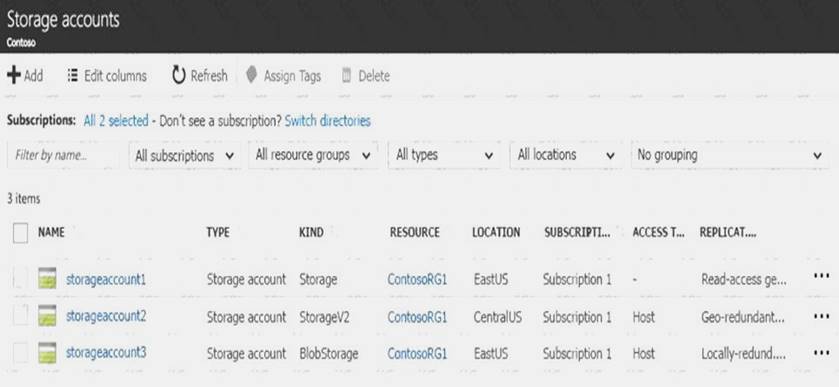
Use the drop-down menus to select the answer choice that completes each statement based on the information presented in the graphic.
NOTE: Each correct selection is worth one point.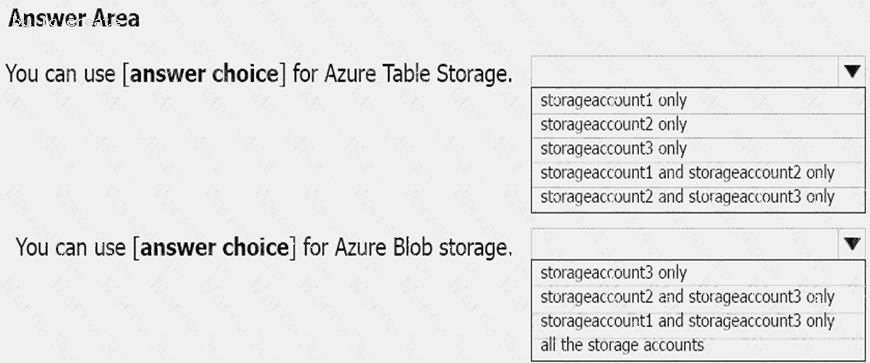
Answer:
Explanation: Box 1: storageaccount1 and storageaccount2 only Box 2: All the storage accounts
Note: The three different storage account options are: General-purpose v2 (GPv2) accounts, General-purpose v1 (GPv1) accounts, and Blob storage accounts. General-purpose v2 (GPv2) accounts are storage accounts that support all of the latest features for blobs, files, queues, and tables. Blob storage accounts support all the same block blob features as GPv2, but are limited to supporting only block blobs. General-purpose v1 (GPv1) accounts provide access to all Azure Storage services, but may not have the latest features or the lowest per gigabyte pricing.
References: https://docs.microsoft.com/en-us/azure/storage/common/storage-account-options
NEW QUESTION 19
Overview
The following section of the exam is a lab. In this section, you will perform a set of tasks in a live environment. While most functionality will be available to you as it would be in a live environment, some functionality (e.g., copy and paste, ability to navigate to external websites) will not be possible by design.
Scoring is based on the outcome of performing the tasks stated in the lab. In other words, it doesn’t matter how you accomplish the task, if you successfully perform it, you will earn credit for that task.
Labs are not timed separately, and this exam may have more than one lab that you must complete. You can use as much time as you would like to complete each lab. But, you should manage your time appropriately to ensure that you are able to complete the lab(s) and all other sections of the exam in the time provided.
Please note that once you submit your work by clicking the Next button within a lab, you will NOT be able to return to the lab.
To start the lab
You may start the lab by clicking the Next button.
Your company plans to host in Azure the source files of several line-of-business applications.
You need to create an Azure file share named corpsoftware in the storagelod8095859 storage account. The solution must ensure the corpsoftware can store only up to 250 GB of data.
What should you do from the Azure portal?
Answer:
Explanation: Step 1. Go to the Storage Account blade on the Azure portal:
Step 2. Click on add File Share button:
Step 3. Provide Name (storagelod8095859) and Quota (250 GB).
References:
https://docs.microsoft.com/en-us/azure/storage/files/storage-how-to-create-file-share
Thanks for reading the newest AZ-100 exam dumps! We recommend you to try the PREMIUM prep-labs.com AZ-100 dumps in VCE and PDF here: https://www.prep-labs.com/dumps/AZ-100/ (106 Q&As Dumps)
- Up To The Immediate Present MS-101 Paper 2021
- The Most up-to-date Guide To 70-534 exam dumps
- how many questions of 70-463 practice test?
- What Practical 70-487 exam question Is?
- The Most up-to-date Guide To 70-494 braindumps
- Microsoft 70-764 Preparation Labs 2021
- Abreast Of The Times Microsoft MTA Software Development Fundamentals 98-361 Testing Software
- Microsoft MB2-712 Study Guides 2021
- Microsoft 70-774 Dumps Questions 2021
- Renew Microsoft Power Platform Developer PL-400 Exam Guide